
How to Download and Install Zenless Zone Zero on PC
Install Zenless Zone Zero on PC from an official source, check storage, choose the right account and server, and avoid starting a separate save by mistake.
Original AI-assisted fan illustration for Zenless Hub. Artwork & editorial policy.
Use an official distribution route and sign in with the account you intend to keep. Installation is straightforward, but account and server choices deserve a moment of attention before you start playing.
Choose an official installer
Start at the official Zenless Zone Zero site for the HoYoPlay download, or use the game’s official Steam listing. Check the product name and publisher instead of downloading an installer from an advertisement or an unrelated mirror.
Check your machine and drive
Compare your PC with the requirements guide. Check the free space on the exact drive where you will install the game. The launcher’s displayed requirement is more useful than an old download-size screenshot because updates and installed voice packs affect the files involved.
Leave working space for updates and extraction. If the drive is nearly full, choose another location through the installer rather than moving partially downloaded files manually.
Install through HoYoPlay
- Follow Windows / Download from the official game site and install HoYoPlay.
- Select Zenless Zone Zero in the launcher and choose the install location.
- Check the displayed space requirement, then allow download, extraction and verification to finish.
- Start the game, sign in to the intended HoYoverse account and select its server.
If you already have a complete HoYoPlay installation, inspect the launcher’s locate-game option before downloading a second copy. Do not assume a Steam installation can be managed as the same package.
Install through Steam
- Open the official Steam listing, add the game to your library and choose Install.
- Select a Steam library with enough space and wait for Steam’s installation to finish.
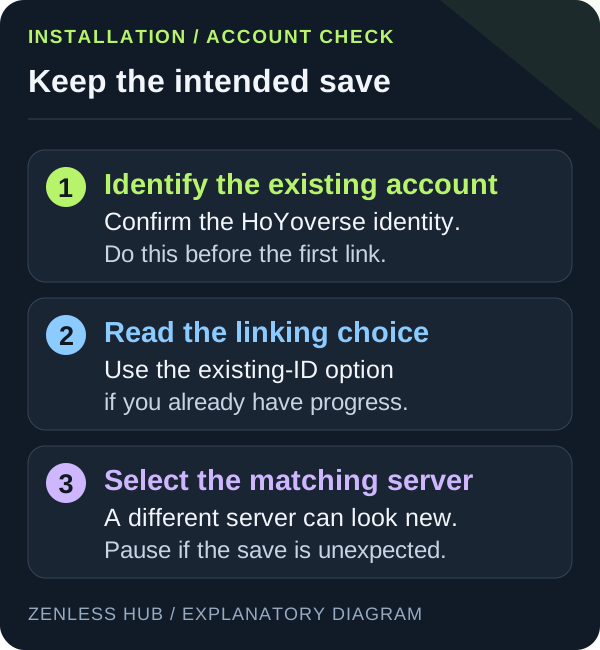
- On first launch, choose the existing-account option if you already have a HoYoverse identity. Creating a new ID establishes a different account.
- Complete the linking prompts, then select the server containing your progress.
The publisher’s permanent Steam launch FAQ confirms account linking and cross-platform progress on the matching account/server. It also states that Steam does not use HoYoPlay for version pre-downloads and installs the full asset package without the same Resource Management deletion feature. Recheck that FAQ if the client later changes.
Preserve the right account
Returning players should use their existing HoYoverse identity and the correct server. Platform sign-in options can create confusion when several login methods look similar. Do not assume a new tutorial means your old progress was erased.
Pause and inspect the account and server before linking an unfamiliar identity or starting over. The official Steam launch FAQ describes the Steam account-linking flow.
If installation seems stuck
| Observation | First check |
|---|---|
| Download pauses but drive activity continues | Allow extraction or verification to finish |
| Installer reports insufficient space | Check the selected drive and temporary working space |
| Game opens at an unexpected beginning | Confirm account identity and server before creating links |
| Download repeatedly fails at the same point | Record the error and use the launcher’s repair route |
Keep the original error text. It is more useful than a description such as “nothing works,” especially when you need official support. Avoid downloading replacement game executables from an unrelated repair site.
Make the first launch comfortable
Choose a stable frame-rate target and test a normal combat encounter before raising every graphics option. Our PC settings guide gives you a repeatable adjustment process.
If the launcher fails, keep the exact error text and follow the repair checklist. Reinstalling everything should come after simpler checks, not before them.
Published September 16, 2026 · Updated September 20, 2026 · See our editorial policy
Source-based editorial guidance. References and the scope of examples are identified in the article. How this content is reviewed.