ZZZ Launcher and Crash Fixes: A Step-by-Step Checklist
Troubleshoot Zenless Zone Zero download failures, launch errors and crashes with file verification, account checks, driver review and useful support details.
Original AI-assisted fan illustration for Zenless Hub. Artwork & editorial policy.
Record the exact error and identify when it happens before changing files. Download failures, sign-in problems and crashes during combat need different checks.
Identify the stage of failure
| Failure | Start here |
|---|---|
| Download or extraction stops | Free space, connection and launcher status |
| Verification repeatedly fails | Client repair or file verification |
| Game does not open | Pending updates, file check and compatibility |
| Sign-in or connection fails | Correct account, server and maintenance notice |
| Combat crashes after playing | Graphics settings, drivers, heat and background tasks |
Write down the full message instead of searching only for “ZZZ broken.” The wording often points toward the next useful step.
Perform the small checks first
Close the game and launcher normally, then restart the PC if a pending update or stuck process may be involved. Check the official announcements for maintenance. Confirm that the installation drive has enough free space.
If several unrelated services also fail, investigate the network before repeatedly reinstalling the game. If only one account or server fails, preserve that detail for support.
Verify installed files
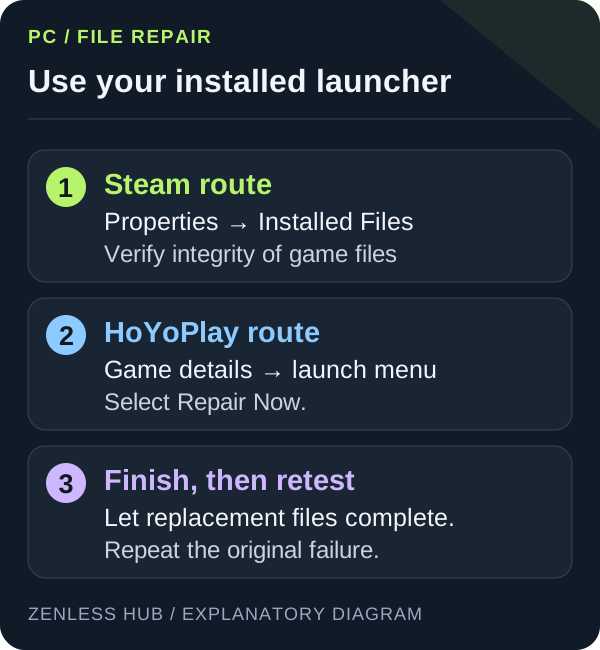
Use the repair or verification option provided by your current launcher. Following Steam’s file-verification instructions, open the game’s Properties, select Installed Files and run the integrity check. Let the check finish and apply any replacement download before testing again.
Do not delete unknown game folders or fetch individual DLL files from unrelated download sites. The official client’s repair process is the appropriate first route for missing or damaged installation files.
HoYoPlay repair route
Open the game’s details page, use the menu beside the main launch button and select Repair Now. Close the game while the repair runs. This path is documented in the official HoYoPlay FAQ; the launcher language can change the label.
Match the message to the next step
| Message or symptom | Next step |
|---|---|
| Failed to download resource files / network error | Check connection and maintenance, then run the matching launcher repair |
| MSVCP140.dll missing | Repair the game prerequisites; use only the supported Microsoft Visual C++ package required by the launcher |
| 0xc000007b | Record the exact executable and try the official prerequisite repair; the code alone is not proof of one cause |
| Unexpected new save after Steam login | Check the linked HoYoverse account and server before reinstalling |
Microsoft provides the supported Visual C++ Redistributable downloads. Choose the package specified by the app vendor; installing a random standalone DLL does not repair the dependency chain. This is a diagnostic path, not a guarantee that every occurrence has the same cause.
For an incorrect Steam link, use HoYoverse’s account-linking correction announcement. It describes the support appeal route and which incorrectly linked UID to identify. Do not repeatedly create new accounts while trying to recover the original one.
Check graphics and drivers
Return to a modest graphics preset and test the same scene. Use the GPU manufacturer’s official driver support page, and note whether the failure began after a driver or game update. See our settings guide for a controlled baseline.
Temporarily close nonessential overlays one at a time if they appear connected to the crash. Keep track of the result so the next test builds on the previous one.
Prepare a useful support report
Include the game version, launcher, Windows version, CPU, GPU, available memory, exact error and the steps that reproduce it. State which checks you already completed. Keep passwords and account recovery codes out of the report.
Reinstall only after you have considered the download cost and confirmed the correct account. A fresh installation does not fix every network, driver or hardware problem.
Published September 16, 2026 · Updated September 20, 2026 · See our editorial policy
Source-based editorial guidance. References and the scope of examples are identified in the article. How this content is reviewed.