ZZZ PC Settings for Stable FPS: A Practical Tuning Guide
Named ZZZ graphics settings, two practical starting profiles and a repeatable method to diagnose combat drops, city stutter and frame pacing on PC.
Original AI-assisted fan illustration for Zenless Hub. Artwork & editorial policy.
Start with 60 FPS, Rendering 1.0 and modest shadows/effects, then test combat. If the PC cannot maintain that target, use the 30 FPS option while diagnosing the bottleneck. These are suggested starting profiles, not measured results for a GPU tier.
Find the actual graphics controls
Open Options → Graphics and select Custom when needed. The table uses ZZZ’s control names. Some options depend on hardware, renderer and client version. Core controls are documented in this original PC settings test; the current option inventory is cross-checked against the game menu reference.
| Control | If struggling to hold the target | Balanced starting point |
|---|---|---|
| FPS | 30 | 60 |
| Rendering | 0.8 if GPU-limited; inspect text clarity | 1.0 |
| Shadows | Low | Medium |
| FX Quality | Low | Medium |
| Shading Quality | Low | Medium |
| Character Quality | Low | High |
| Environment Quality | Low | High |
| Mirror Reflections | Disable | Disable initially |
| Volumetric Fog | Disable | Low |
| Anti-Aliasing | Compare SMAA and TAA for clarity | SMAA starting point |
| Motion Blur | Personal preference | Disable if motion looks unclear |
Use the display’s native resolution as the first reference. Reducing Rendering can help a GPU-limited scene but does not establish that every hitch comes from the GPU. Do not search for a generic “Texture Quality” control based on other games’ menus.
Crowd Density was added under Options → Graphics in Version 3.1. If city areas are the main problem, try reducing it and compare the same route. Publisher’s 3.1 announcement. Ray-tracing and other optional effects should start disabled during diagnosis; enable them individually only if available and the baseline is stable.
Tune one cause at a time
| Symptom | First controlled comparison |
|---|---|
| Slow throughout combat | Lower Rendering one step; keep everything else fixed |
| Drops when attacks fill the screen | Reduce FX Quality and repeat the same encounter |
| City traversal is worse than combat | Compare Crowd Density and background activity |
| Screen tears while moving | Compare Vertical Sync; account for any active variable-refresh setup |
| Performance worsens after a long session | Check laptop power, cooling and background tasks |
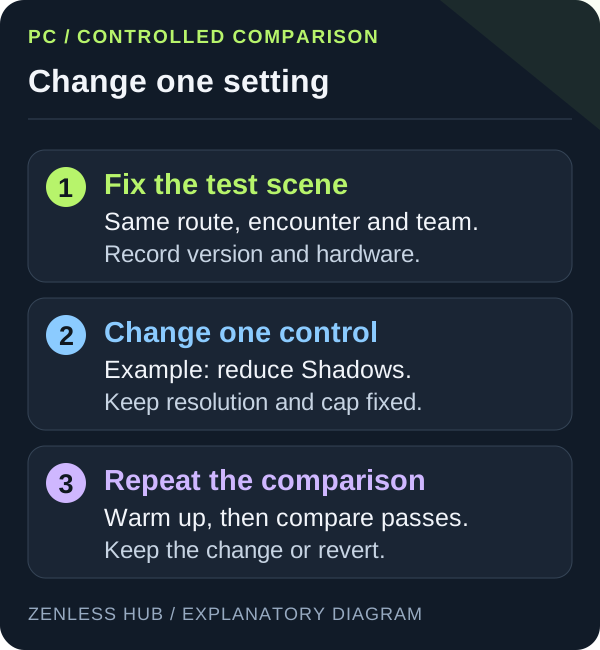
Shadows, FX and rendering adjustments are experiments, not universal cures. If one setting makes no difference, restore it before changing the next. A stronger GPU does not eliminate every CPU, storage or shader-related pause.
A reproducible test record
Write down the game version, CPU, GPU, RAM, resolution, renderer, frame cap and changed setting. Run the same short city route and combat encounter three times; use the first pass to settle loading, then compare the next two. Record average FPS and frame-time behavior only if you actually measure them with an overlay or capture tool.
For a personal note, “repeat stutter at the same corner after lowering Shadows” is more useful than an unsupported claim of “50% faster.” No new ZZZ benchmark was performed for this article, and the older external test is not a promise for Version 3.2.
On a laptop, use the appropriate power supply and confirm the active GPU. Check the published requirements first; if the game exits or returns an error, follow launcher and crash troubleshooting instead of treating a crash as a graphics-preset problem.
Published September 16, 2026 · Updated September 20, 2026 · See our editorial policy
Source-based editorial guidance. References and the scope of examples are identified in the article. How this content is reviewed.