
ZZZ PC Requirements and Storage: Check Before Installing
Compare ZZZ minimum and recommended PC requirements, find your CPU and GPU in Windows, and distinguish installed space from update working space.
Original AI-assisted fan illustration for Zenless Hub. Artwork & editorial policy.
Compare the actual CPU and GPU models, then check free space on the installation drive. A label such as “gaming laptop” or “Core i5” alone does not tell you whether your machine meets a particular requirement.
Published minimum and recommended specifications
The official Steam store page lists the following specifications, checked on September 20, 2026. Recheck that page and your launcher before installing a later version.
| Component | Minimum | Recommended |
|---|---|---|
| Windows | 10, 64-bit | 10, 64-bit |
| CPU | Intel Core i5, 7th generation | Intel Core i7, 10th generation |
| RAM | 8 GB | 8 GB |
| GPU | GeForce GTX 970 | GeForce GTX 1660 |
| DirectX on store listing | 11 | 11 |
| Available storage | 75 GB | 75 GB |
| Drive | HDD supported | SSD recommended |
| Network | Broadband | Broadband |
These are the store’s published compatibility figures, not a promise of a particular resolution, preset or frame rate.
Find the exact hardware names
Open Windows System information to review the processor, memory and operating-system architecture. Use Task Manager’s Performance tabs or the DirectX Diagnostic Tool to identify the graphics device. On a laptop with two GPUs, note both names and check which one the game uses.
Do not compare system RAM with graphics memory as if they were the same resource. Also avoid treating two processors with the same family name but different generations as identical.
Find the numbers in Windows
- Press Win + R, enter dxdiag and open it.
- On System, note the processor, memory, Windows version and DirectX version.
- Check Display and any additional Render/Display tab for the GPU names. A laptop can list both integrated and dedicated graphics.
- Open File Explorer → This PC and check available space on the actual installation drive.
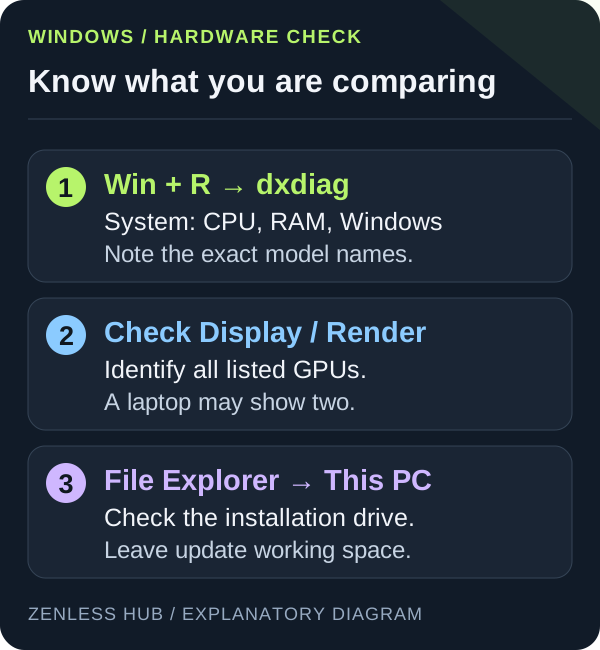
The publisher’s Steam launch FAQ specifies DirectX 11.1 or later, while the store table says 11. Keep that distinction when diagnosing compatibility; a reported runtime version alone does not identify every GPU feature capability.
Leave room for the update process
Installed size, download size and temporary working space are different measurements. The files required by a later patch can change, so use the current launcher’s estimate and keep additional free space available.
If you install on a second drive, also check that Windows has reasonable free space on its system drive. A completely full drive can create problems outside the game’s own installation folder.
Meeting the minimum is the starting point
Begin with modest settings and test a representative combat scene. Watch for a consistent experience rather than judging performance from a quiet menu. Follow the stable FPS guide to adjust one variable at a time.
If your machine falls short, reducing settings may help performance but does not establish compatibility. Avoid buying a component based only on this table; a useful upgrade depends on the rest of the machine and your target experience.
Published September 16, 2026 · Updated September 20, 2026 · See our editorial policy
Source-based editorial guidance. References and the scope of examples are identified in the article. How this content is reviewed.